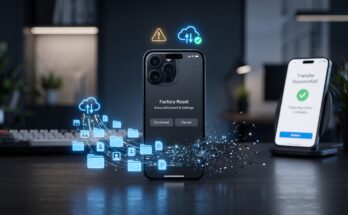
If your iPhone suddenly loses battery after connecting an external accessory, the accessory itself may be part of the problem. USB-C hubs, portable storage drives, microphones, gaming controllers, displays, and other peripherals can draw considerably more power than you might expect.
The frustrating part is that your iPhone may not always make the cause obvious. You simply connect something, start using it, and watch the battery percentage fall faster than usual.
The good news? You don’t necessarily have to stop using the accessory. A few changes to your setup can reduce unnecessary power consumption and make your iPhone accessories much more practical for everyday use.
Why Can an iPhone Accessory Use So Much Power?
Not Every Accessory Is Equally Efficient
An accessory connected to an iPhone receives power through the phone’s port unless it has its own battery or external power source. Simple devices such as basic keyboards or small adapters generally require relatively little energy.
More demanding hardware is different.
External SSDs, USB hubs, Ethernet adapters, audio interfaces, displays, and other high-powered peripherals can consume substantially more power. If you’re transferring large files or running several connected devices simultaneously, the demand can increase even further.
The Accessory May Be Doing More Work Than You Realize
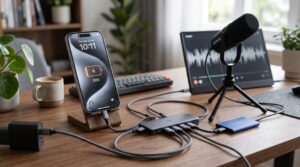
Consider a USB-C hub with an SSD, memory card, microphone, and HDMI display attached. Although you may think of it as one accessory, your iPhone is effectively powering several pieces of hardware.
That’s where battery drain can become noticeable.
If your iPhone becomes unusually warm while using an accessory, that’s another reason to investigate the setup. Heat and sustained processing activity can contribute to faster battery consumption.
Use External Power When Possible
A Powered USB-C Hub Can Make a Big Difference
One of the simplest solutions is using a powered hub or dock that accepts power from an external charger.
Instead of asking the iPhone to supply all the energy required by connected peripherals, the external power source can provide electricity to compatible accessories.
This is particularly useful when you’re connecting storage devices, displays, microphones, or multiple USB peripherals at the same time.
Look for Pass-Through Charging
If your accessory supports pass-through charging, you can connect your iPhone to a charger while simultaneously using the peripheral.
For example, imagine you’re editing video from an external SSD. Rather than allowing the SSD to continuously draw power from the iPhone, a compatible powered setup can provide external power while you work.
That can make a substantial difference during longer sessions.
Check Which Accessories Are Draining Your Battery
Test One Device at a Time
Don’t troubleshoot everything simultaneously.
Disconnect your accessories and monitor your iPhone’s battery behavior. Then reconnect one accessory and use the phone normally for a while.
Repeat the process with each peripheral.
This simple elimination method can reveal whether the problem comes from a particular accessory rather than the iPhone itself.
Watch for Heat and Unusual Behavior
Battery percentage isn’t the only clue.
If connecting an accessory causes the phone to become noticeably warmer, applications to slow down, or battery life to deteriorate rapidly, pay attention.
An inefficient accessory, excessive processing, or a demanding workload may be responsible.
Choose Accessories Designed for iPhone Power Efficiency
Cheap Adapters Aren’t Always the Best Choice
Price isn’t the only factor when choosing an iPhone accessory.
Poorly designed or inefficient accessories can create unnecessary power demands, compatibility problems, or inconsistent performance.
Look for accessories that clearly specify their power requirements and compatibility with your particular iPhone model.
External Storage Is a Common Example
Portable SSDs are incredibly useful for photographers, videographers, and anyone moving large files between devices.
But an SSD connected directly to an iPhone has to receive power from the phone unless the setup provides another source.
For extended file transfers, a powered hub or appropriate dock can therefore be a much better arrangement.
iPhone Settings Can Help Too
Reduce Background Activity
If your battery seems to disappear quickly even after disconnecting the accessory, the accessory may not be the only issue.
Check your iPhone’s battery settings to identify applications consuming significant energy. An app performing intensive background activity can compound the drain caused by an external peripheral.
Reducing unnecessary background activity can improve overall battery endurance.
Keep iOS Updated
Software compatibility matters.
Apple periodically improves power management, USB-C compatibility, and accessory support through software updates. Keeping your iPhone updated can therefore eliminate problems caused by older software.
If an accessory suddenly behaves differently after an iOS update, check the manufacturer’s compatibility information as well.
The Best Fix Depends on Your Accessory
There isn’t one universal solution for every iPhone accessory.
A small microphone might work perfectly without external power, while an SSD or multi-device USB-C hub may benefit greatly from a powered connection.
The smartest approach is to identify how much power the accessory requires, determine whether your iPhone is supplying that power directly, and then move demanding peripherals to an externally powered setup whenever practical.
That approach is usually more effective than simply replacing your iPhone.
FAQ
Why does my iPhone battery drain quickly when using a USB-C accessory?
Some USB-C accessories draw power directly from the iPhone. High-powered devices such as external storage, displays, and multi-port hubs can increase battery consumption significantly.
Can a USB-C hub drain an iPhone battery?
Yes. A hub can draw power from the iPhone, particularly when multiple peripherals are connected. A powered hub can reduce the amount of energy supplied directly by the iPhone.
Does an external SSD drain an iPhone battery?
Yes, an externally connected SSD requires power to operate. The amount of battery consumed depends on the drive, workload, connection, and how the accessory is powered.
How can I reduce iPhone accessory power consumption?
Try using externally powered accessories, disconnect peripherals when they’re not needed, avoid unnecessary connected devices, and choose accessories designed for efficient iPhone operation.
Should I replace my iPhone if accessories drain the battery?
Not necessarily. First determine whether a specific accessory is responsible. Testing peripherals individually and using external power can often solve the problem without replacing the phone.