 News Time Tech Welcome To Hot News Time Tech
Related Articles
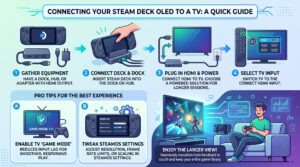
You want the big-screen experience without leaving the Steam Deck ecosystem. The OLED model looks sharp in your hands, yet playing on a television opens up couch co-op, easier visibility, and longer sessions. The Deck has no HDMI port, so you need a simple bridge.
Connecting it takes only a few minutes once you have the right hardware. Most people use a dock or a USB-C hub with HDMI output. The process works the same on the OLED version as on the original LCD model. Follow the steps below and you will be playing on your TV quickly.
Choose the Right Connection Method
The cleanest option is a dedicated dock. Valve’s official Steam Deck Dock includes HDMI, USB ports, Ethernet, and power delivery so the Deck charges while it plays. Many third-party docks from JSAUX, Jsaux, and others offer similar features, sometimes with higher refresh-rate support or lower prices.
A simpler alternative is a USB-C to HDMI adapter or a compact hub that includes HDMI and power delivery (PD). Basic adapters without PD will output video but will not charge the Deck, so battery life becomes a limit during longer sessions. For regular TV use, prioritize a solution that passes power.
I keep a compact PD hub in my living-room cabinet. It lets me plug in the Deck, an HDMI cable, and the charger in one motion.
Step-by-Step Setup with a Dock or Hub
Power on your TV and select the correct HDMI input. Connect an HDMI cable from the dock or hub to the TV. Plug the dock’s USB-C cable into the Steam Deck OLED’s USB-C port. Attach the power supply to the dock so the Deck receives charge.
The Deck’s screen usually goes black once it detects the external display—this is normal in Gaming Mode. The image should appear on the TV within a few seconds. If nothing shows, cycle through the TV’s HDMI inputs or unplug and reconnect the USB-C cable.
Once the picture appears, press the Steam button, go to Settings > Display, and adjust External Display Scaling or resolution if the image looks soft or stretched. Many TVs benefit from enabling Game Mode and disabling motion smoothing to reduce lag.
Using a Simple USB-C to HDMI Adapter
If you only need occasional TV play and already own a capable USB-C charger, a basic adapter works. Plug the adapter into the Deck, connect HDMI to the TV, and use a separate USB-C charger if the adapter supports pass-through charging. Without pass-through, expect the battery to drain.
Active adapters are more reliable than passive ones. Valve notes that passive DisplayPort-to-HDMI adapters can cause issues, so choose products explicitly marketed for Steam Deck or USB-C video output. Resolution and refresh rate will depend on both the adapter and the TV’s capabilities.
This method keeps the setup minimal but sacrifices the convenience of a full dock’s extra ports and stable power delivery.
Optimize Picture and Performance on the TV
After connecting, check the Steam Deck’s performance overlay (Battery button + X or the quick access menu). Lower the frame-rate limit or resolution if the Deck struggles to maintain smooth gameplay on the larger screen. External displays often run at 1080p or 1440p, which is easier on the hardware than pushing higher internal resolutions.
Enable HDR on the TV only if the game and Deck settings support it cleanly; otherwise leave it off to avoid washed-out colors. Position yourself at a comfortable viewing distance and consider a Bluetooth controller or the Deck’s own controls if you sit farther away.
Fan noise becomes more noticeable on a quiet living-room setup. Placing the Deck on a hard surface or using a dock with good airflow helps keep temperatures in check during longer sessions.
FAQ
Does the Steam Deck OLED need a special dock?
No. Any USB-C dock or hub that supports video output and preferably power delivery works. The official dock is convenient but not required.
Will the Deck charge while connected to the TV?
Only if your dock or adapter supports USB Power Delivery and you plug in a suitable charger.
Why is the Deck’s screen black?
In Gaming Mode the internal display turns off when an external screen is detected. This is expected behavior.
Can I get 4K or 120 Hz?
It depends on the dock, cable, and TV. Many docks support up to 4K at 60 Hz; some newer ones reach higher refresh rates at lower resolutions. The Deck’s own performance is usually the limiting factor for demanding games.
Do I need Desktop Mode?
Not for basic TV play. Gaming Mode handles external displays automatically. Desktop Mode is useful if you want both screens active or need more display options.
What HDMI cable should I use?
A standard High Speed or Premium High Speed HDMI cable is sufficient for 1080p and 4K at 60 Hz. Higher refresh rates benefit from HDMI 2.1 cables when the hardware supports them.
