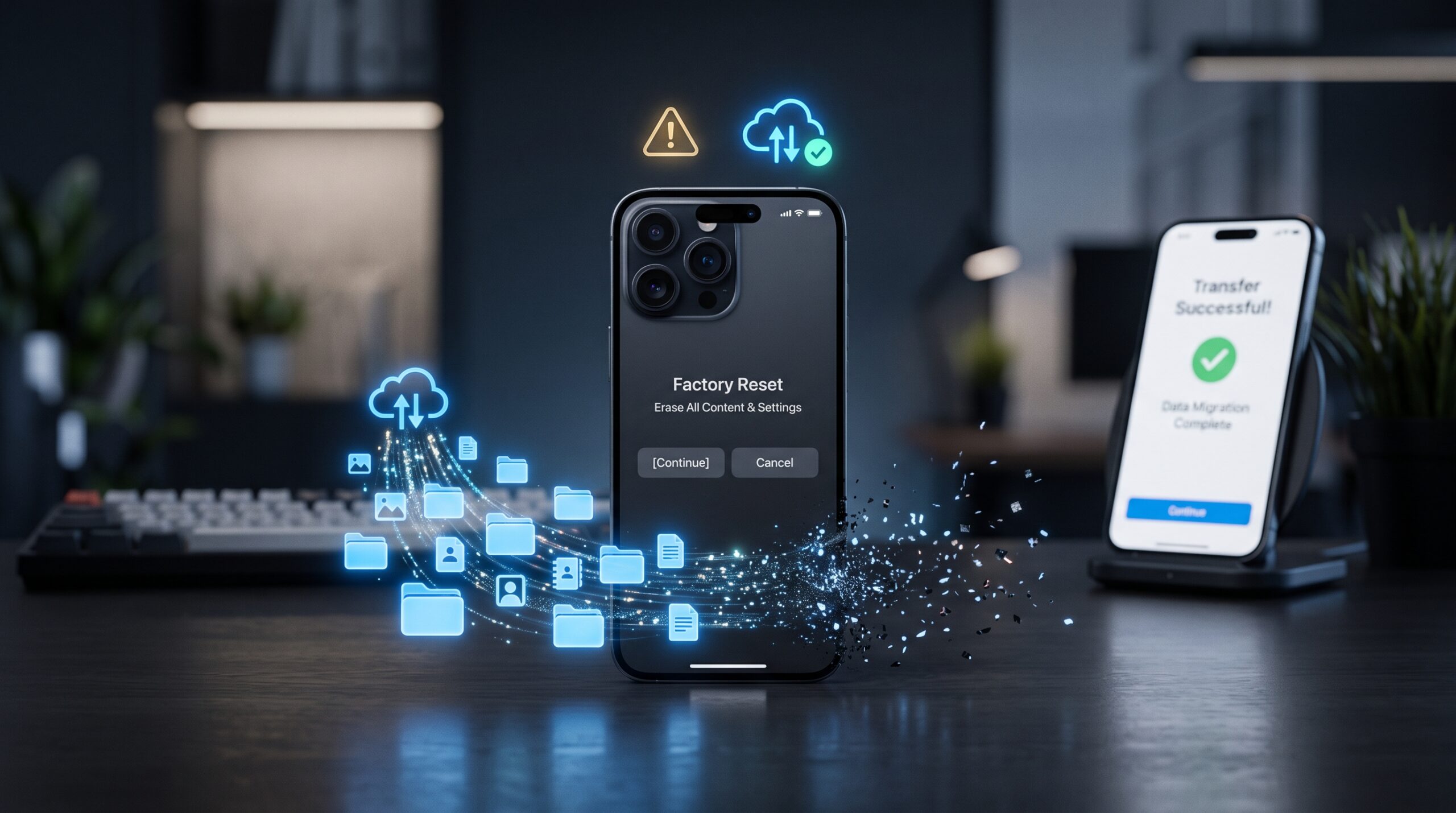
Is It Safe to Skip Backup When Erasing Your iPhone? What You Need to Know Before Tapping Erase
Erasing an iPhone can feel like a simple housekeeping task. You open Settings, tap the option to erase the device, enter your passcode, and let the phone return to factory settings
But there is one step that can make the difference between a clean reset and a very expensive mistake: backup.
Apple gives you the option to erase an iPhone without first creating a fresh backup. That doesn’t mean your information is automatically protected. If something exists only on the iPhone and hasn’t been synchronized or backed up elsewhere, erasing the device can make that data difficult—or sometimes impossible—to recover.
This matters even more if you’re selling your iPhone, trading it in, giving it to someone else, troubleshooting a serious software problem, or moving to a new device.
The good news is that you don’t always need to create a new backup immediately before erasing your iPhone.
The key is knowing what has already been synchronized, what is actually backed up, and whether you still need anything stored locally on the device.
What Happens When You Erase an iPhone?
When you use Apple’s Erase All Content and Settings feature, the iPhone removes your personal information, settings and content from the device and returns it to its factory state.
This is very different from simply restarting the phone.
A restart leaves your data intact. An erase is designed to remove it.
That makes the feature useful when you’re preparing an iPhone for a new owner or starting fresh after troubleshooting.
However, the erase process itself shouldn’t be treated as a backup mechanism.
Erasing Doesn’t Mean Your iCloud Data Automatically Disappears
This is where many people become confused.
Information synchronized with iCloud can remain available in your Apple Account even after the iPhone itself has been erased. Apple separates device data from information stored and synchronized through its cloud services.
For example, if you use iCloud Photos and your photos have successfully synchronized, erasing the iPhone doesn’t mean those photos suddenly vanish from iCloud.
But there’s a catch.
Synchronization and backup are not the same thing.
iCloud Photos can synchronize your photo library, while an iCloud Backup is designed to preserve other device information and settings that may not be independently synchronized.
Understanding that distinction is one of the most important steps before erasing an iPhone.
Is It Actually Safe to Skip a Backup?
Sometimes.
If you’ve verified that everything you need is already synchronized, transferred or backed up elsewhere, creating another backup immediately before erasing may not be necessary.
But if you’re unsure, skipping the backup is a gamble.
Think about what is currently stored on your phone.
You may have photos, videos, messages, app data, documents, authentication information, downloaded files and settings that you don’t want to lose.
Some of those items may already exist in the cloud.
Others may not.
Ask Yourself One Simple Question
Before erasing your iPhone, ask:
“If this phone disappeared right now, would I be comfortable with what I can recover from another device?”
If the answer is yes, you’re probably in a much safer position.
If the answer is “I’m not sure,” don’t erase it yet.
Take a few minutes to verify your backup and synchronization status.
That small delay can save hours—or prevent permanent data loss.
iCloud Sync vs. iCloud Backup: What’s the Difference?
This distinction deserves special attention because it causes so many accidental data-loss situations.
With iCloud synchronization, supported information is kept updated across your Apple devices and iCloud. Changes made on one device can appear on another.
iCloud Backup works differently.
It creates a backup of information and settings on your iPhone that isn’t already being synchronized through Apple’s other services.
In simple terms, synchronization helps keep information available across devices, while backup provides a recovery copy of your device data.
Why This Matters Before an Erase
Suppose your photos are synchronized with iCloud Photos.
Those photos may already be available in iCloud.
Now imagine that you have app data or device settings that aren’t independently synchronized.
Those may depend on your iCloud Backup for recovery.
That’s why looking only at your photo library isn’t enough.
You need to think about the entire device.
When You Should Absolutely Back Up First
There are situations where creating a fresh backup is the sensible choice.
The first is when you’re replacing your iPhone.
Even if you’ve used iCloud for years, a recent backup gives you another layer of protection before you wipe the old device.
The same applies if you’re troubleshooting a major problem.
If you’re erasing the phone because it is freezing, crashing or behaving strangely, you don’t want the troubleshooting process to become a data-loss event.
Back Up Before Giving the iPhone Away
If you’re selling or trading in your iPhone, backup should be part of your preparation checklist.
First preserve the information you want.
Then transfer anything necessary to your replacement device.
Only after you’ve confirmed that the new device has what you need should you erase the old one.
This order matters.
If you erase first and discover later that something didn’t transfer properly, your recovery options can become much more limited.
What About Photos and Videos?
Photos are often the biggest concern.
If you’re using iCloud Photos and synchronization has completed successfully, your library should remain available through iCloud rather than depending solely on the physical iPhone.
But you should still verify it.
Don’t assume that because iCloud Photos is enabled, every recent photo has already synchronized.
A new photo taken minutes ago may still be processing, especially if the phone has poor connectivity or hasn’t completed its upload.
Check Before You Erase
Open your Photos library and make sure your recent images appear where you expect them to.
If you’re moving to another Apple device, confirm that the same library is available there.
You can also check your iCloud settings and storage situation.
If your iCloud storage is full, synchronization may not be working the way you expect.
That’s a small detail with potentially huge consequences.
What About Messages?
Messages deserve the same attention.
If you’re using Messages in iCloud, your messages can synchronize across supported Apple devices.
But if you haven’t enabled the relevant synchronization features, your message history may depend more heavily on your device backup.
This is especially important for people who keep years of conversations.
Don’t Assume Your New iPhone Has Everything
When setting up a replacement iPhone, take a few minutes to inspect the things that matter most.
Check:
- Recent text conversations
- Photos and videos
- Contacts
- Notes
- Calendars
- Files
- Important app data
- Voice recordings
- Safari information
- Authentication apps
You don’t have to inspect every single file.
Focus on the information you would genuinely regret losing.
What If You’re Erasing the iPhone Because You’re Selling It?
This is one situation where the answer is especially straightforward.
Back up or transfer your data first.
Once you’ve confirmed that your new device has everything you need, you can prepare the old iPhone for its next owner.
Apple’s erase process is designed specifically for this type of situation.
Before handing over the device, you should also make sure you’ve followed Apple’s recommended steps for transferring your information and removing your account from the device.
Don’t Manually Delete Everything
One common mistake is deleting photos, contacts and other information manually before signing out.
That’s unnecessary and can create additional problems if you’re using synchronization services.
Instead, transfer your information first and then use Apple’s official erase process.
The goal is to remove your information from the old device without accidentally deleting information from your cloud account.
That distinction is critical.
What If You’re Erasing the iPhone to Fix a Problem?
A factory reset can sometimes be useful when you’re troubleshooting persistent software problems.
But don’t treat it as the first solution to every issue.
Before erasing, consider simpler troubleshooting steps such as restarting the device, updating iOS or checking whether a specific app is responsible.
If you eventually decide that a complete erase is necessary, create a backup first whenever possible.
A Reset Is a Last-Resort Tool
A factory reset is powerful because it removes a lot.
That’s also why you should approach it carefully.
If your phone is still working normally enough to perform a backup, there’s little reason to skip that protection.
The few minutes required to make a backup are usually insignificant compared with the potential cost of losing irreplaceable information.
What If You Already Erased the iPhone Without a Backup?
Don’t panic immediately.
First determine whether the information was synchronized with iCloud or another service.
Your photos, contacts, notes or other information may still be available if they were synchronized independently.
You should also check whether an older iCloud or computer backup exists.
Look for Another Copy
Think beyond Apple’s automatic backup system.
You might have:
- An older iCloud Backup
- A Mac backup
- A Windows PC backup
- Photos stored on another cloud service
- Files saved to a computer
- Messages synchronized with another Apple device
- Documents stored in cloud storage
The important question isn’t simply whether you skipped a backup immediately before the erase.
It’s whether another recoverable copy existed.
If no copy exists and the data was stored only on the erased device, recovery may be extremely difficult.
How to Make an iPhone Backup Before Erasing
If you decide to create a fresh iCloud Backup, make sure the phone is connected to Wi-Fi and has enough battery or is connected to power.
Then check your iCloud backup settings and initiate a backup manually.
Don’t immediately erase the phone after tapping the backup button.
Wait for the backup process to finish.
Verify Instead of Assuming
This is the part people often skip.
A backup attempt isn’t the same as a confirmed backup.
Check the backup information afterward and make sure the latest backup time reflects the backup you just created.
If the backup fails because of insufficient iCloud storage, network problems or another issue, resolve the problem before erasing the phone.
Five extra minutes here can be worth far more than five hours of recovery attempts later.
Should You Always Create a Backup Before Erasing?
Not necessarily.
If you’re confident that your important information is already synchronized and accessible elsewhere, another backup may be redundant.
For example, if you’ve already moved everything to a new iPhone and confirmed that your photos, messages, contacts and other important information are present, you may have little reason to create yet another copy.
But redundancy is valuable.
Storage is cheap compared with losing irreplaceable photographs or important personal documents.
The Safest Approach Is Simple
If you’re uncertain, back up.
If you’re completely confident your data is already protected elsewhere, you can consider skipping the additional backup.
The important thing is that the decision should be based on verification, not assumption.
That’s the difference between an informed reset and a risky one.
A Simple Pre-Erase Checklist
Before tapping Erase All Content and Settings, run through this quick checklist:
- Confirm your important photos are synchronized or backed up.
- Check your recent messages.
- Verify contacts and calendars.
- Check Notes and important documents.
- Make sure essential app data is recoverable.
- Confirm your latest backup if you created one.
- Make sure your replacement device has the information you need.
- Keep the iPhone connected to power if necessary.
- Follow Apple’s recommended transfer and erase procedure.
- Only then erase the device.
It sounds like a lot.
In practice, it can take only a few minutes.
And those minutes can protect years of personal information.
Final Takeaway

So, is it safe to skip a backup when erasing your iPhone?
Sometimes—but only when you know exactly where your important information exists.
If your photos, messages, contacts, documents and other important data are already synchronized or safely stored elsewhere, you may not need another backup immediately before the erase.
But if you’re unsure, don’t take the risk.
Create a fresh backup, verify that it completed successfully, and only then erase the iPhone.
The safest mindset is simple: never erase first and investigate your backups afterward.
Your iPhone can be reset in minutes.
Some of the data stored on it may be impossible to replace.
FAQ
Does erasing an iPhone delete everything?
Erase All Content and Settings removes personal information, settings and content from the iPhone and returns it to factory settings. Data that has already been synchronized with cloud services may remain available through those services.
Will I lose my iCloud Photos if I erase my iPhone?
If your photos have successfully synchronized with iCloud Photos, erasing the iPhone does not normally remove the synchronized library from iCloud. Always verify synchronization before erasing.
Do I need an iCloud Backup before resetting my iPhone?
Not always. If your important information is already synchronized or backed up elsewhere, you may not need another backup. If you’re uncertain, creating a fresh backup is the safer choice.
What is the difference between iCloud Sync and iCloud Backup?
Synchronization keeps supported information available and updated through iCloud, while iCloud Backup preserves a broader set of device information and settings that aren’t already synchronized through other services.
What happens if I erase my iPhone without a backup?
If important data existed only on the iPhone and wasn’t synchronized or copied elsewhere, you may permanently lose access to it. If another backup or cloud copy exists, you may still be able to recover the information.
Should I back up my iPhone before selling it?
Yes. Back up or transfer the information you want to keep, verify that your new device has what you need, and then follow Apple’s recommended process to erase the old iPhone before giving it to someone else.
Can I recover data after erasing an iPhone?
Recovery depends on whether another copy exists. Check iCloud synchronization, iCloud Backup and any Mac or Windows backups you may have. If the information existed only on the erased device, recovery may not be possible.